

Set permissions
The procedure is the same for every entity: what changes is where you start and which groups you find. For what the groups mean, see the reference of the entity you are working on — project · office · person · supplier · multi-company.
- Open the entity: the project, the office, the person’s card, the supplier window, or the multi-company panel from the Start menu.
- From its menu, go to Administration and select Permissions.
- The section has two sub-menus: Groups and Users.
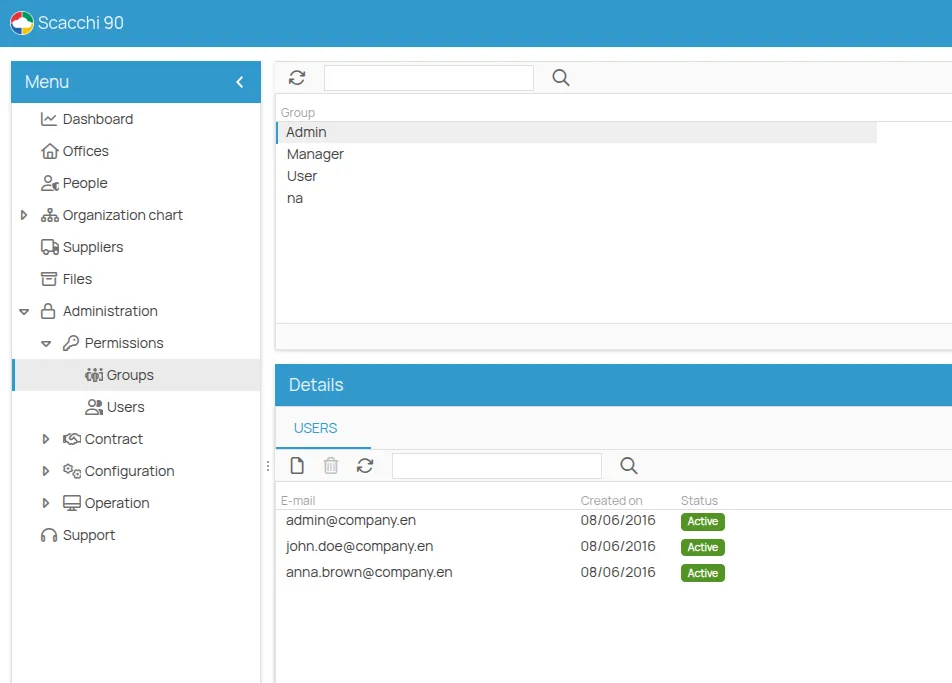
- Open Groups to see the predefined groups of that entity.
- Select the group, and in Details you see the users it contains.
- Click new and enter an email address to add a user, or select one and remove them.
To see everyone with direct access to the entity, open the Users sub-menu.
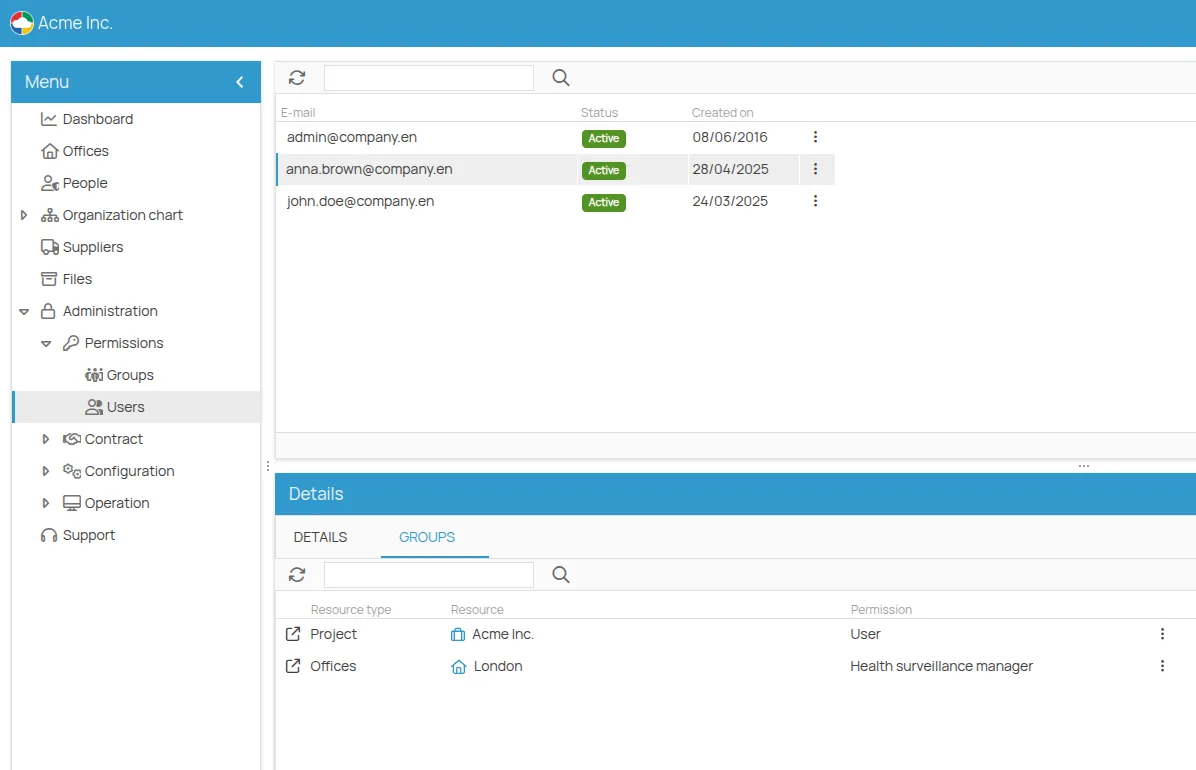
Permissions per functional area
Section titled “Permissions per functional area”On an office you can be more granular: instead of a general role, assign a user to the group of a single area — Training, Health surveillance, Personal protection, Procedures, Maintenance. Combined with a lower role on the project, this limits both what they see and where they can write.
- Open the office, go to Administration → Permissions → Groups.
- Select the area group, for example Maintenance manager.
- In Details, click new and enter the email address.
This site is protected by reCAPTCHA and the Google Privacy Policy and Terms of Service apply.