

Customise a template
Every template in 4HSE can be edited, and replaced with one of your own. Both paths involve editing HTML, so some familiarity with it helps.
Edit a template before printing
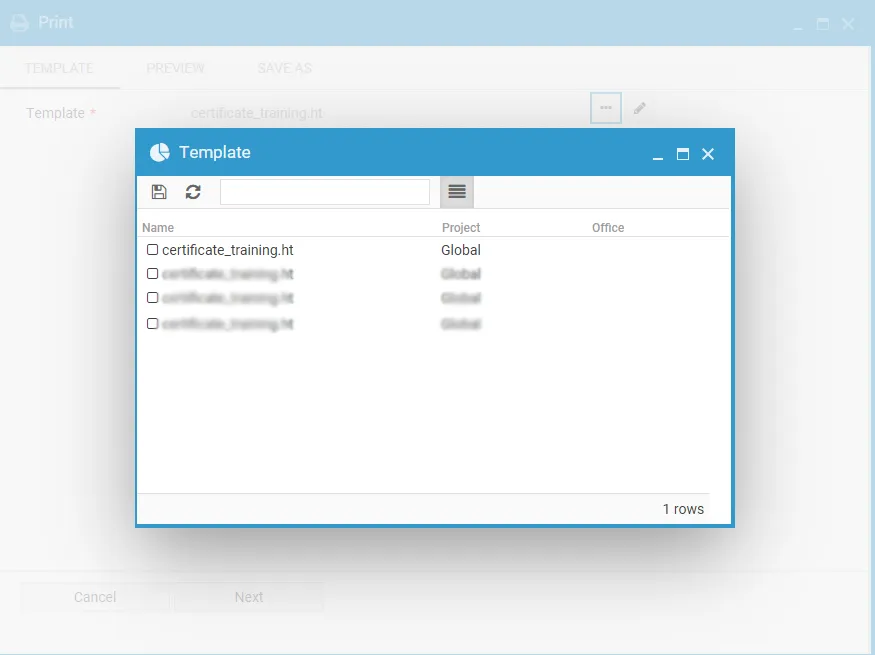
Section titled “Edit a template before printing”- In the print flow, with the template selected, click the edit button.
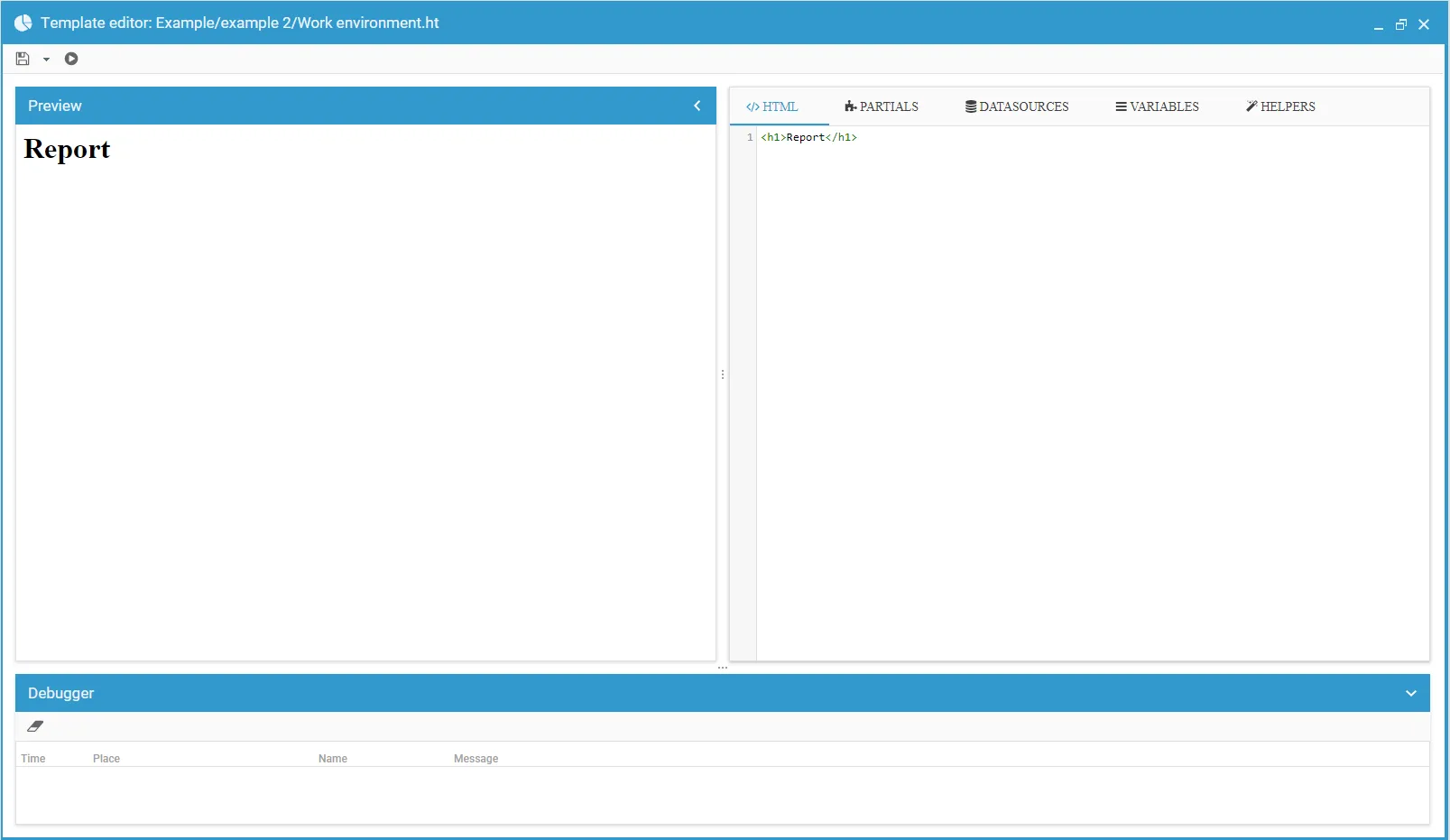
- The editing window opens, with the code on one side and a live preview on the other.
- Make your changes.
- Save with the save icon, choosing where to store your version inside the Archive section of the file system.
- Click Save again to confirm.
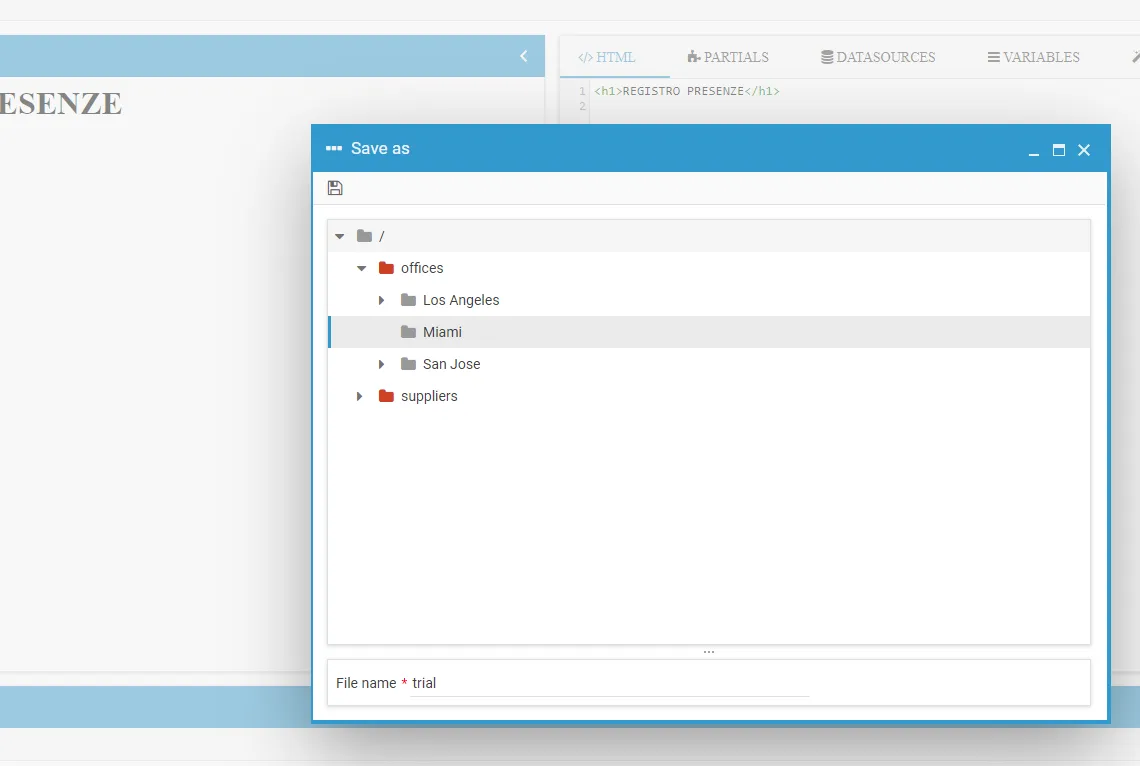
The modified file is used immediately for that export, and then stays in the recent templates list for later.
Editing a template from the archive
Section titled “Editing a template from the archive”You can also work on a template without printing anything: open the office or project Documents, select the folder and the template and click the edit button.
Upload your own template
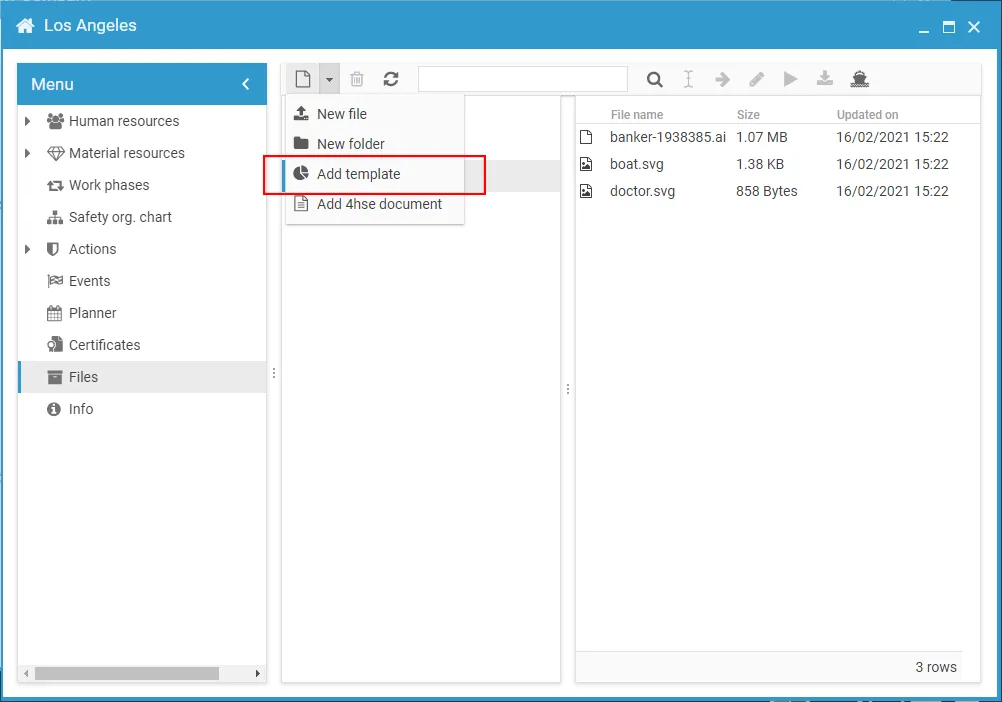
Section titled “Upload your own template”- Open the target office and select Documents.
- Choose the folder in the tree, or create a new one.
- Click the new document dropdown and select New template.
- Upload your template.
This site is protected by reCAPTCHA and the Google Privacy Policy and Terms of Service apply.