

Fill in a form during an activity
You never go looking for a form: the system prompts it when it is due. There are two moments, depending on the kind of activity.
The attendance register is filled in during the session
Section titled “The attendance register is filled in during the session”This is the case of the course attendance register.
- In the Sessions section, click a session date. The Form completion button becomes active in the toolbar.
- Click the icon: the forms associated with that context open.
- Select the form, fill it in and save.
Every other form is filled in with the certificate
Section titled “Every other form is filled in with the certificate”For every other form type, completion is tied to producing the evidence.
- Start the certificate creation for an action that has linked forms. Before finalising it, 4HSE shows the linked forms window.
- Click Fill next to the form to open it.
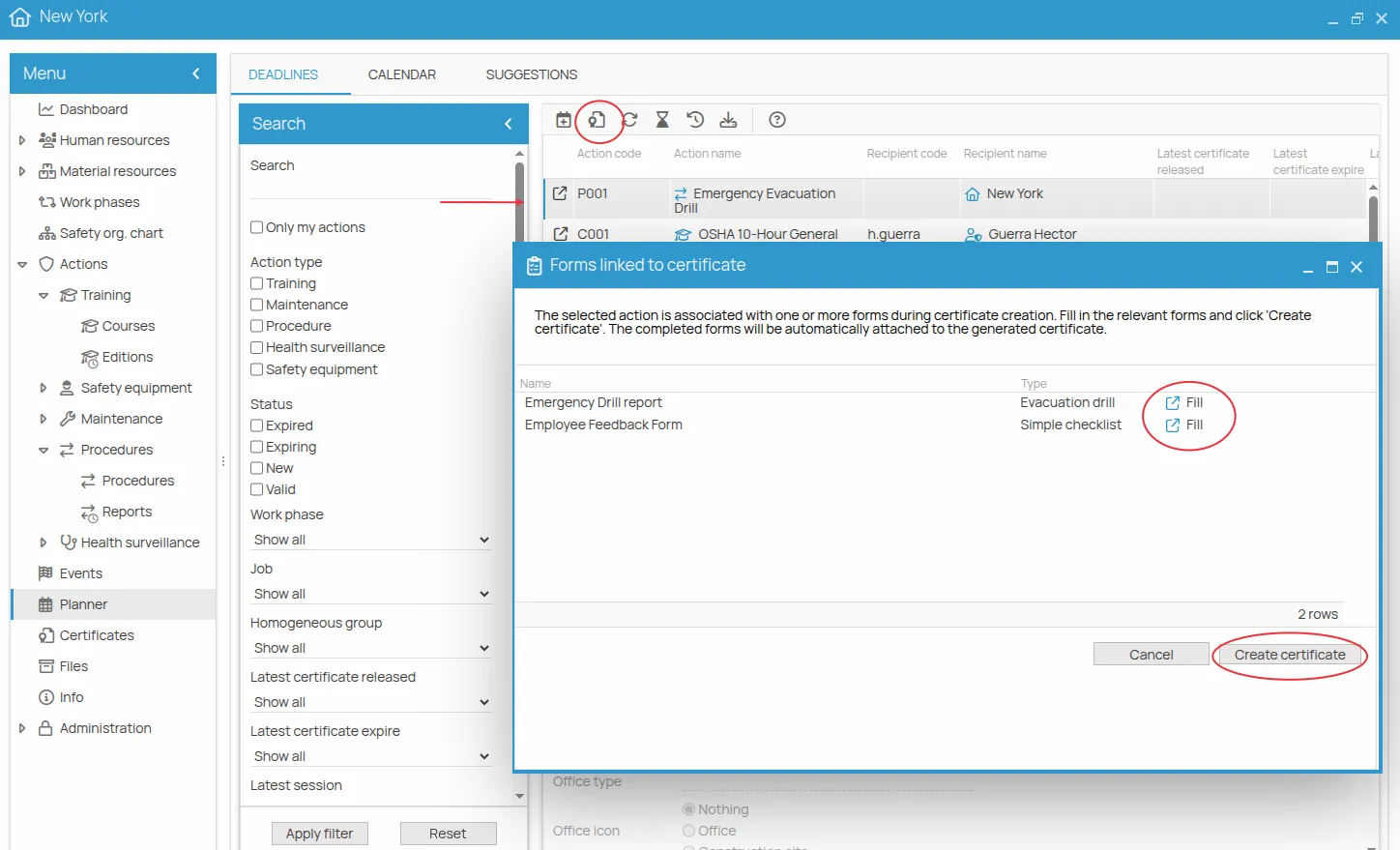
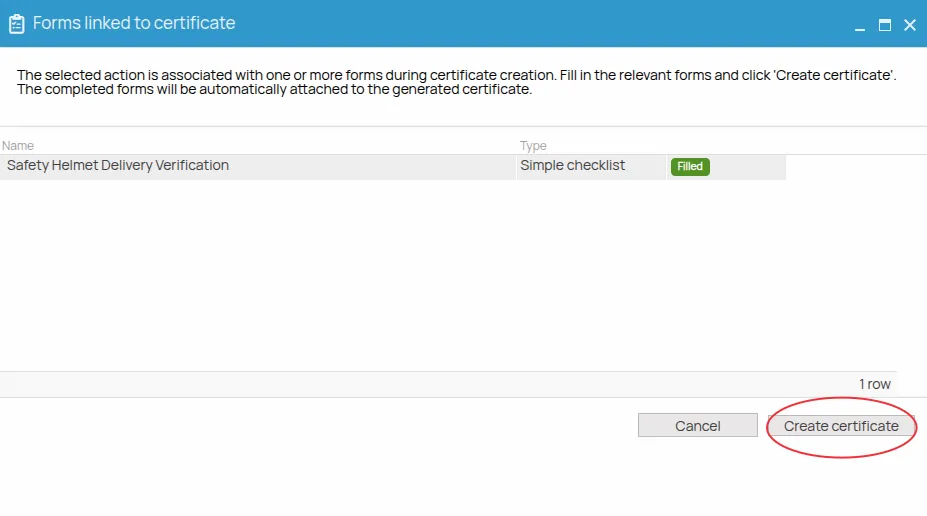
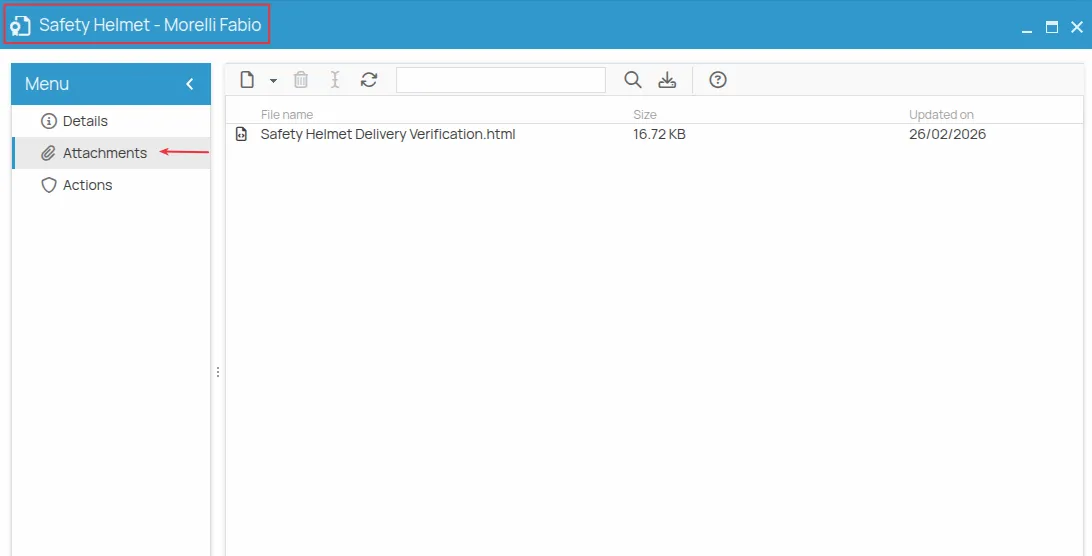
The data collected becomes an attachment to the certificate being issued.
Draft or final save
Section titled “Draft or final save”While it is being filled in, a form is in one of two states.
Draft keeps the data entered without completing the form. The form stays editable and can be reopened to complete or update the information.
Final save confirms completion and closes the process. After it the content can no longer be edited, and the form becomes part of the document it is attached to.
What the final save produces
Section titled “What the final save produces”| Attendance register | a document attached to the session date |
| Any other form | an attachment to the certificate being issued |
| File format | .html |
When the form generates a document, 4HSE asks in which folder of the file system to store it, so it is archived in the project folders and reachable from the certificate at the same time.
This site is protected by reCAPTCHA and the Google Privacy Policy and Terms of Service apply.