

Assign an associated user
There are three ways to create the link, depending on whether you are working on one person, setting a default, or changing many at once. For what the link does, see The associated user.
From the person’s record
Section titled “From the person’s record”The way to handle one person.
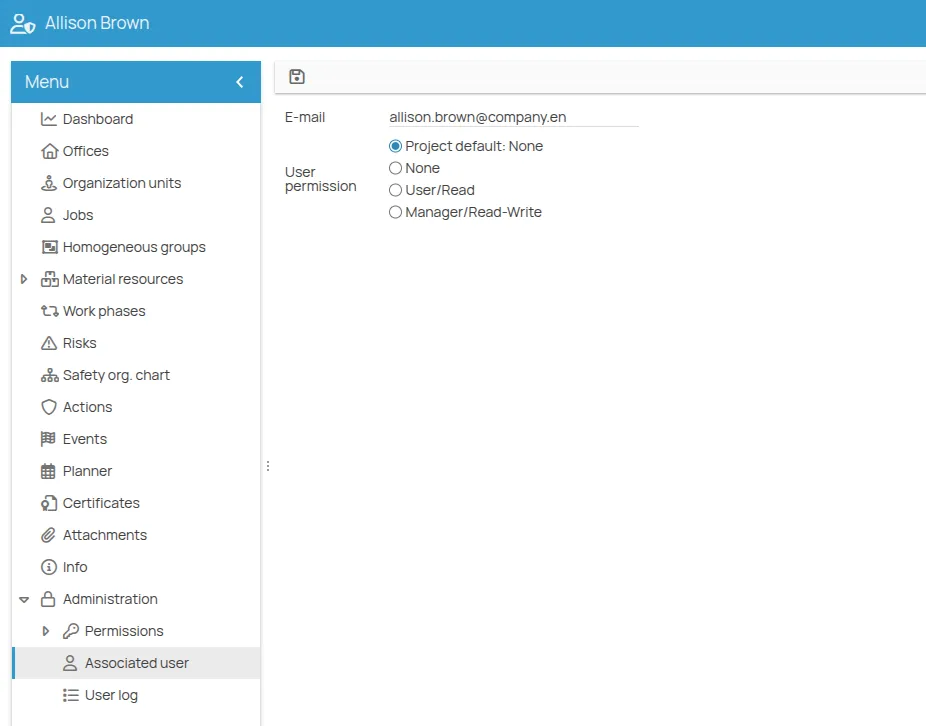
- Open the person’s record.
- Go to the Administration menu and select Associated user.
- Enter the user’s email address.
- Choose the permission level.
- Save.
From the project configuration
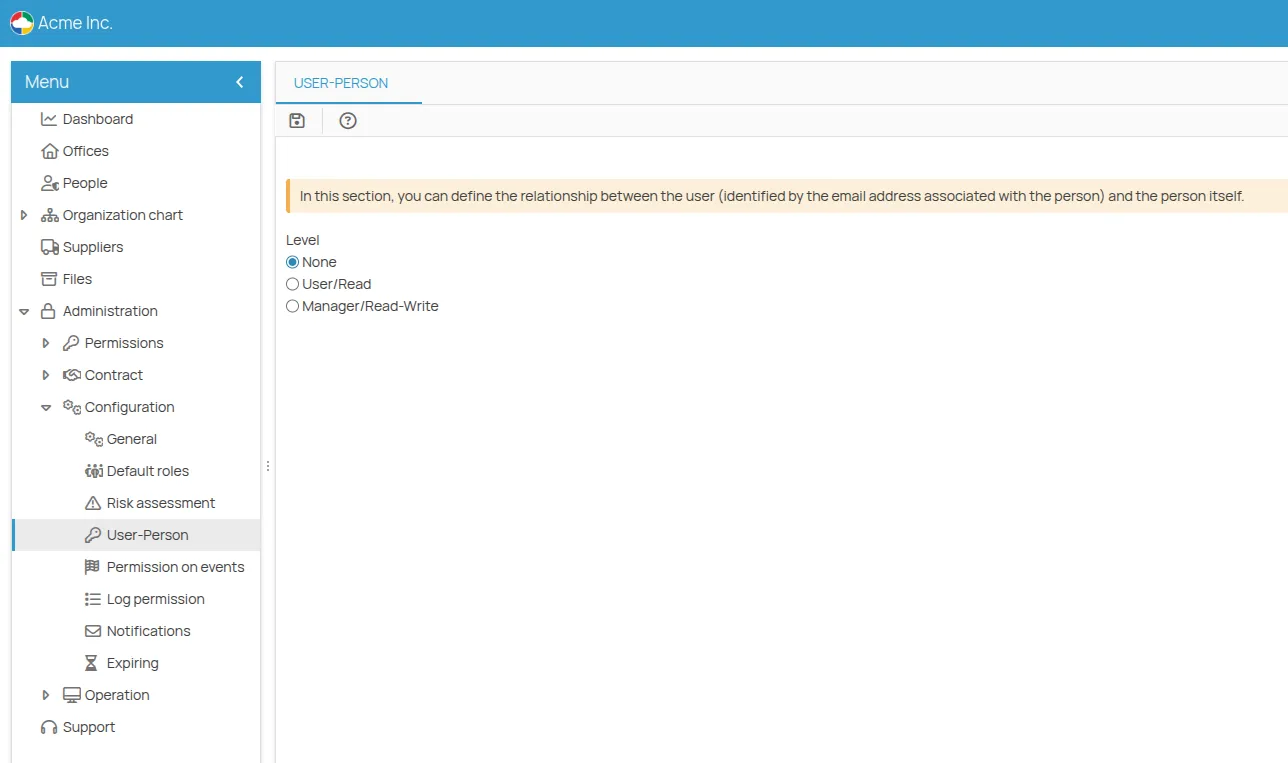
Section titled “From the project configuration”Sets the default level applied to every new associated user. Useful for bulk imports and for those using the APIs.
- Go to Project menu → Administration → Configuration → User-Person.
- Use the selector to define the default permission.
With the wizard, for many at once
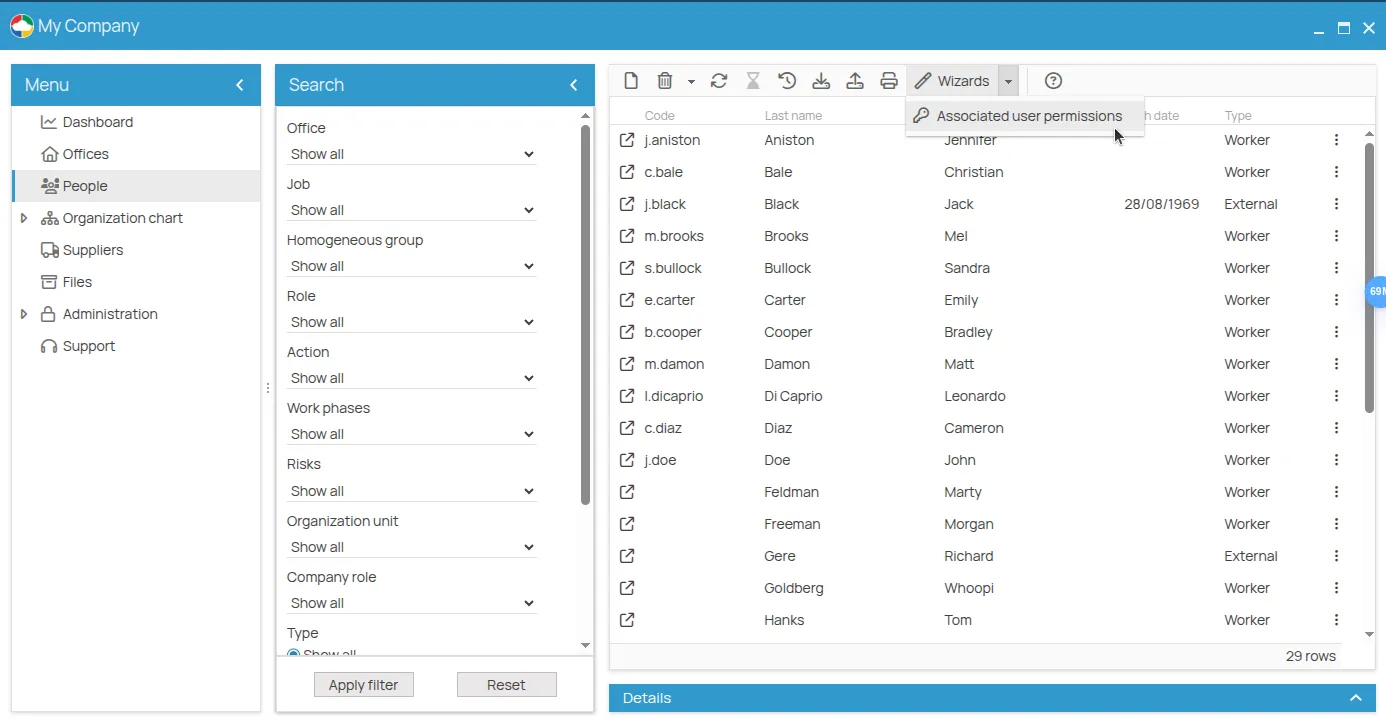
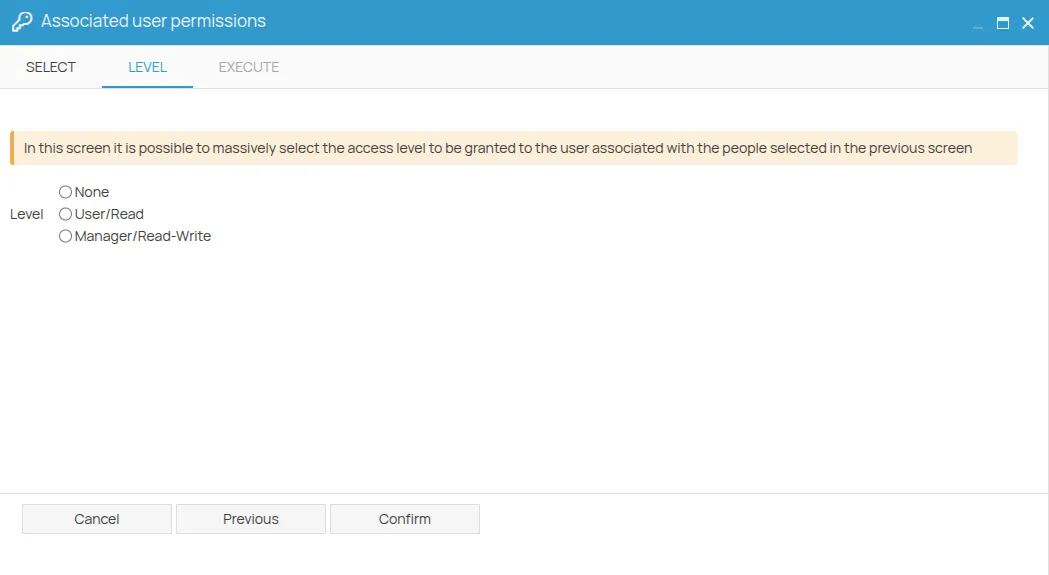
Section titled “With the wizard, for many at once”Changes the permission of a group of people who already have an associated user.
-
Open the wizard from the people list.
-
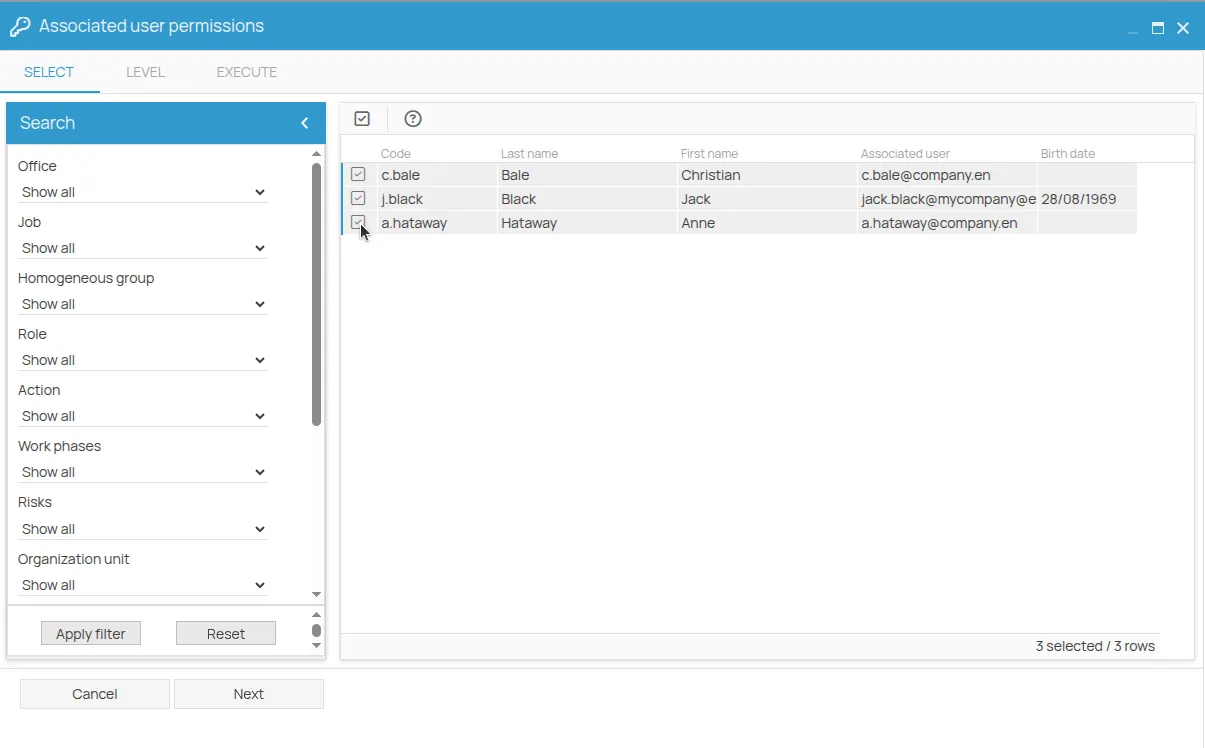
Select the people whose permission you want to change. Only those who already have a associated user are shown.
-
Choose the permission to assign.
-
Confirm to apply it to everyone selected.
This site is protected by reCAPTCHA and the Google Privacy Policy and Terms of Service apply.