

Manage a certificate
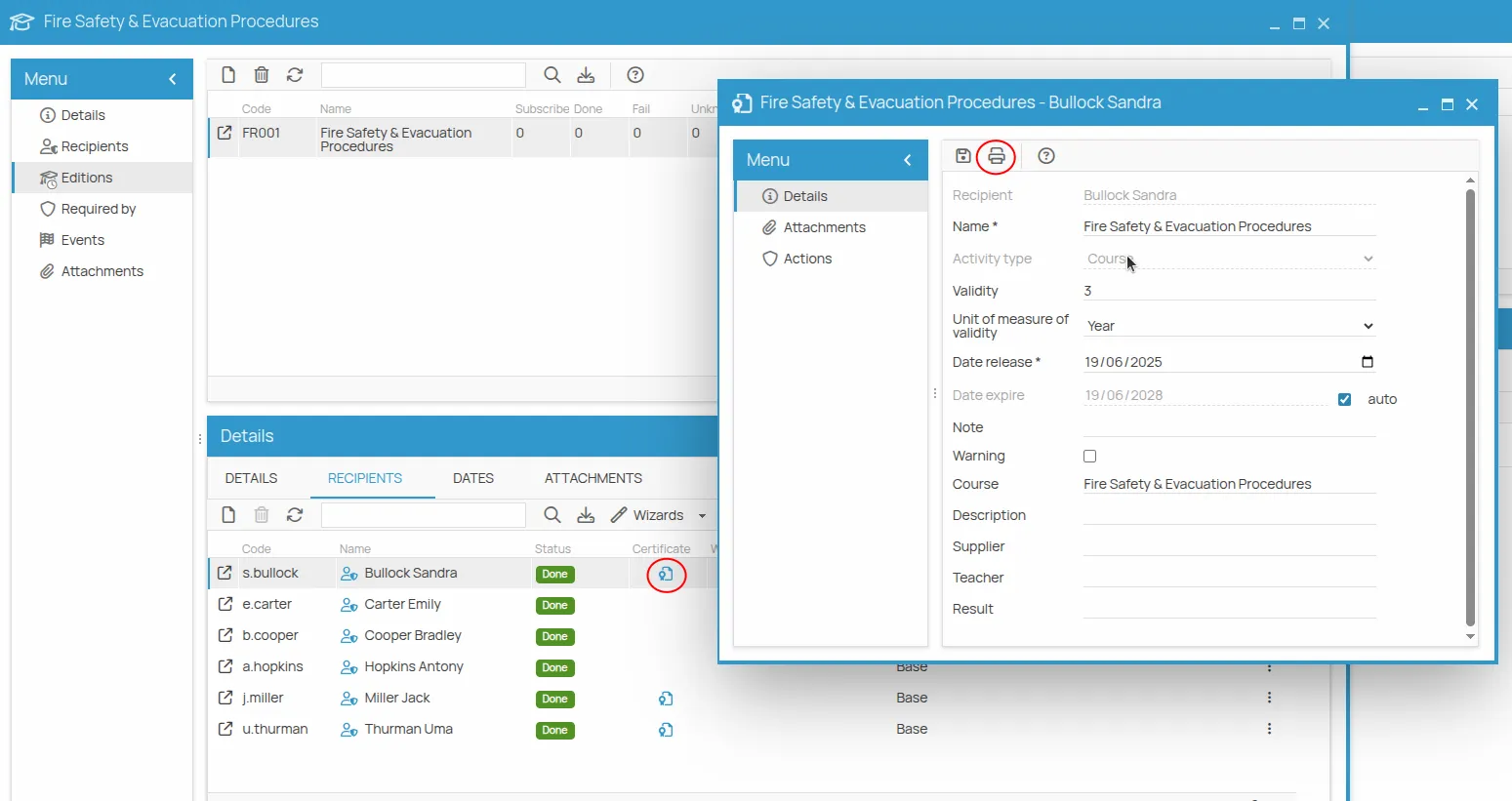
Once issued, a certificate can be consulted and completed at any time. In the Certificate column of the recipients list, the certificate icon opens its card.
From the card you can:
- check and change the issue and expiry dates;
- add notes and fill in the optional fields;
- print or export the document;
- archive it in the office file system;
- download it;
- attach the original document issued by a third party.
Print or export
Section titled “Print or export”- Click the Print icon.
- Click … to open the list of available templates.
- Select the template and click Save, then Next to see the preview.
- Click the print icon to send it to a local printer, or Next to export or archive it.
This site is protected by reCAPTCHA and the Google Privacy Policy and Terms of Service apply.