

Record the outcome of a session
After a session has taken place, you record how it went for each enrolled recipient. You can do it one by one or in bulk, depending on how many there are.
One recipient at a time
Section titled “One recipient at a time”- Double-click the recipient’s row, or click the link icon, to open the enrolment detail.
- Select the outcome:
PassedorFailed. - Adjust the start and end of validity dates if needed.
- Save.
The whole list at once
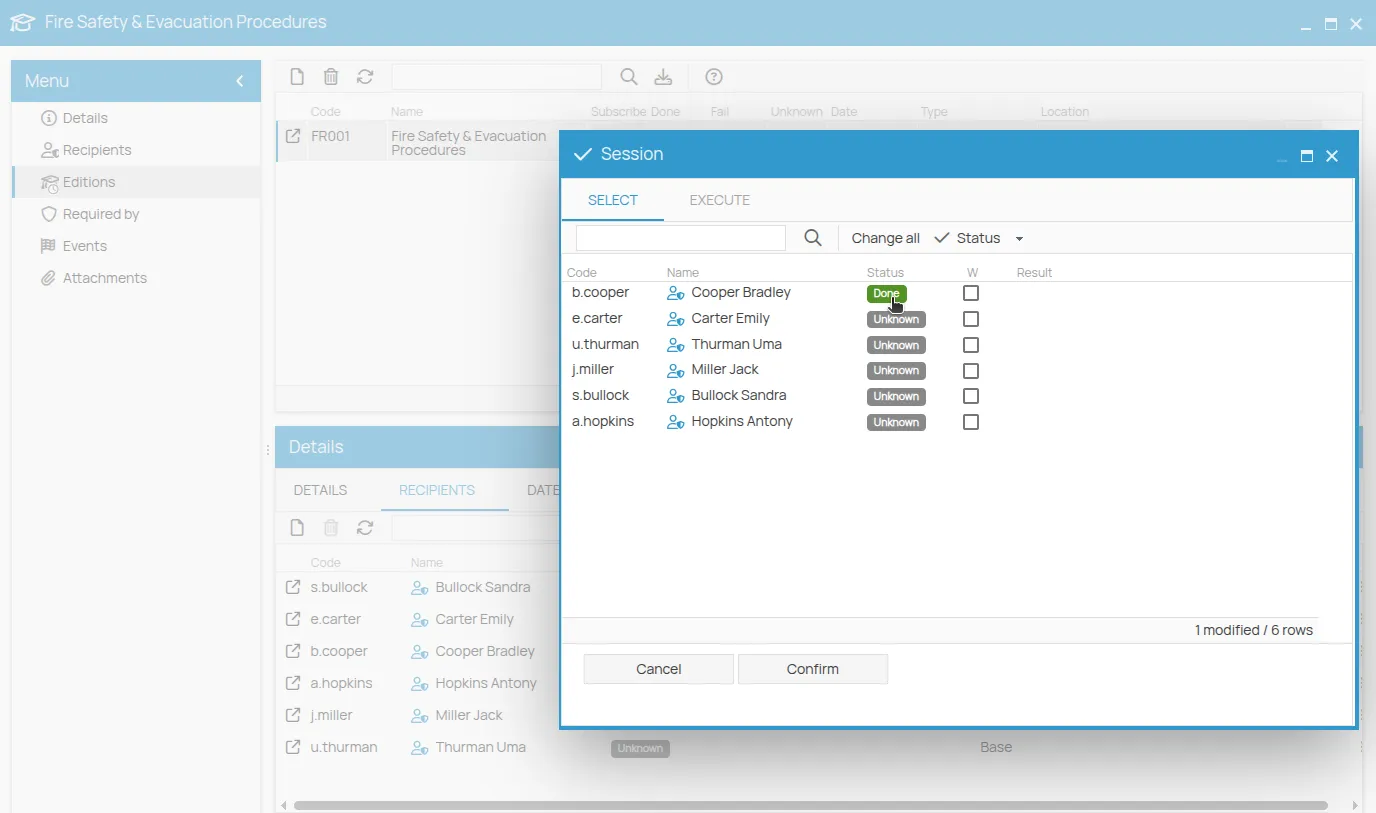
Section titled “The whole list at once”- From the session toolbar, click Wizards, then Bulk edit.
- Click the status badge of each row to change it.
- Optionally tick the W (warning) box to flag a record that needs attention: an icon will mark the row.
- Click Confirm to save all the changes.
Once an outcome is Passed, you can
issue the certificate.
This site is protected by reCAPTCHA and the Google Privacy Policy and Terms of Service apply.