

Issue a hot work permit
In this tutorial you authorise a welding job in an area of a plant. The work must be approved only after the due checks, last a few hours, and be verifiable on site by a supervisor or an inspector.
At the end you will have issued a permit that expires by itself and can be checked with a phone.
The same flow applies to the other high-risk permits — confined spaces, electrical work, work at height — and, in its simplest form, to authorising a person’s site access.
1. Create the procedure
Section titled “1. Create the procedure”The permit is issued through an action of type Procedure.
- Open the project and go to the office concerned.
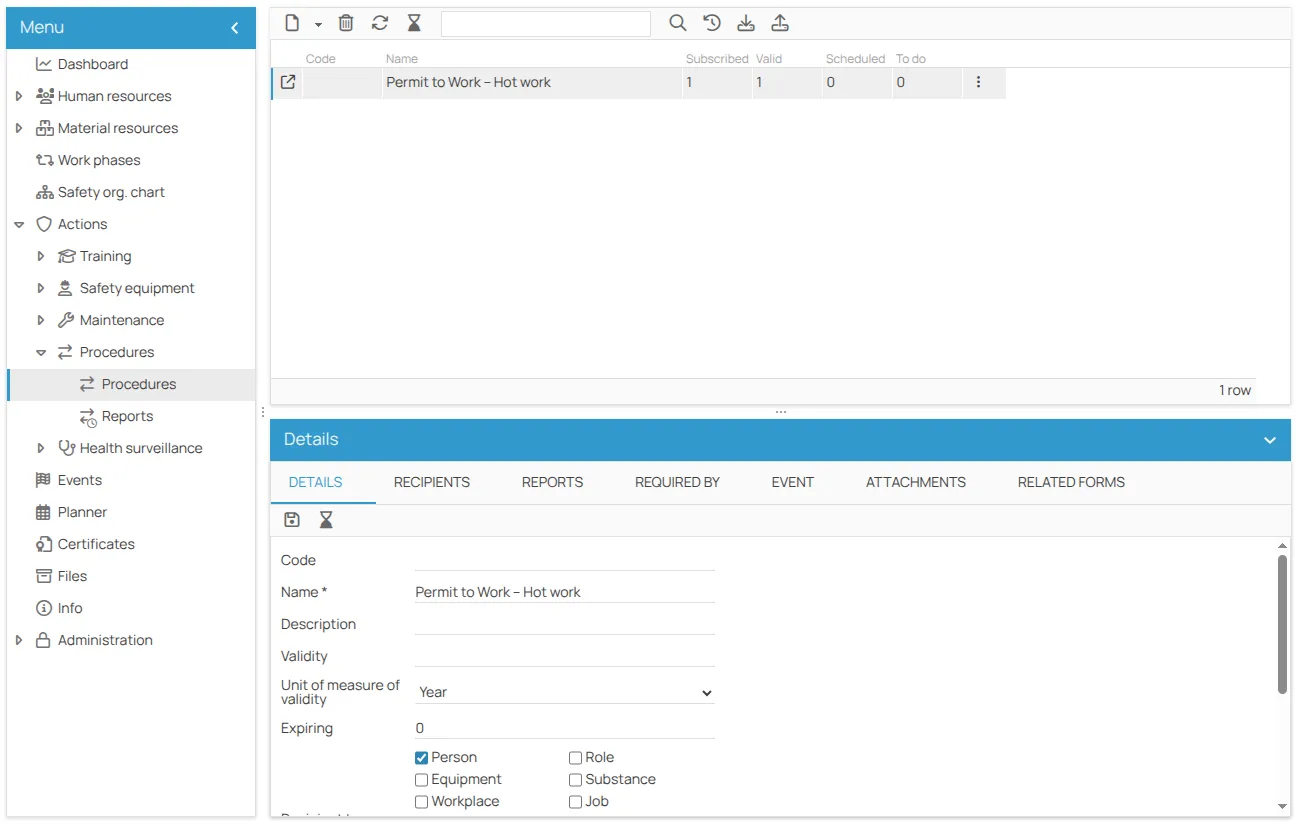
- Go to Actions → Procedures and create a new procedure, for example “Permit to Work – Hot work”.
- Set its validity and the other parameters.
2. Add the required form
Section titled “2. Add the required form”In the Linked forms tab of the procedure, add the forms that must be completed for the permit to be authorised. 4HSE provides ready-made, regulation-compliant PTW forms: general work permit, hot work permit, confined space entry, electrical work, work at height.
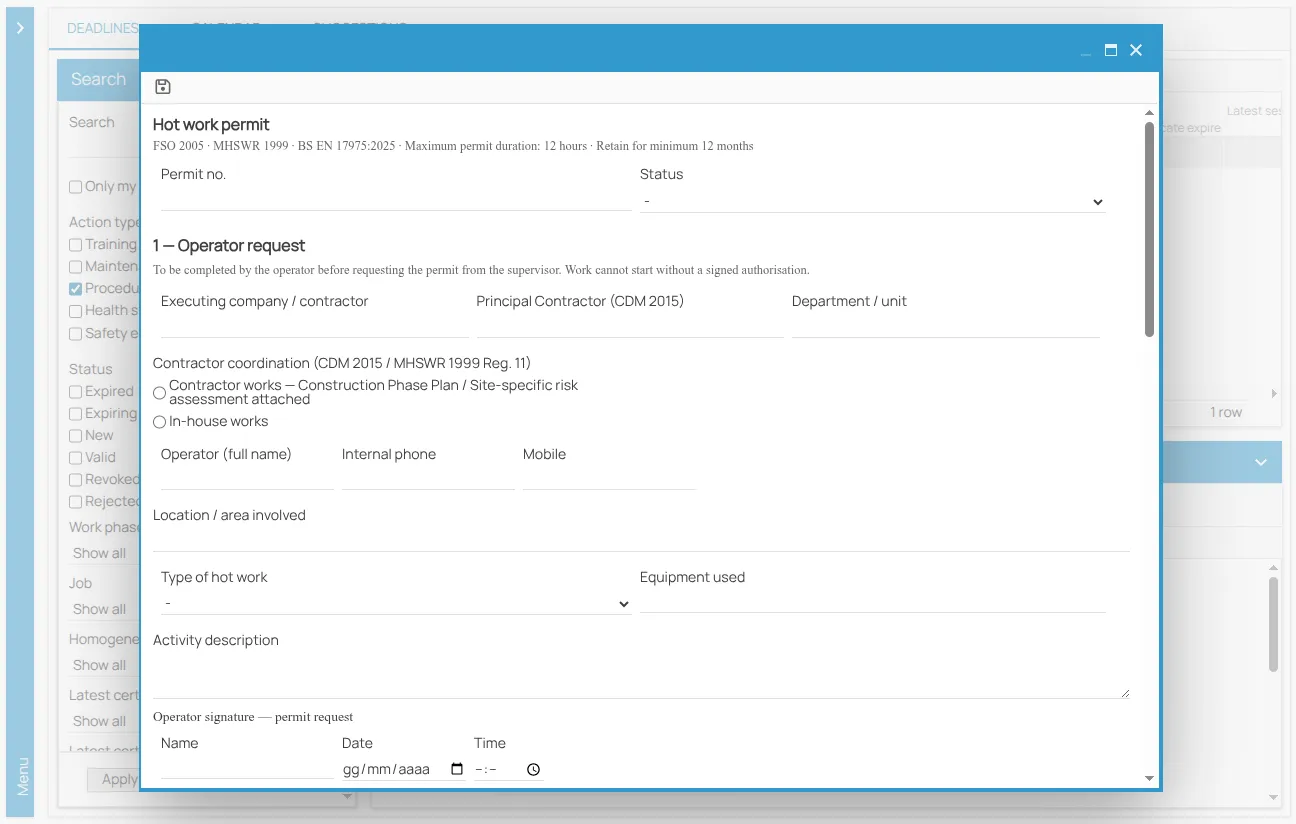
Add the Hot work permit form. It gathers what the authorisation needs: performing company and contract coordination, location, fire-risk classification of the area, fire prevention measures, start and end time of the work.
Mark it as Required.
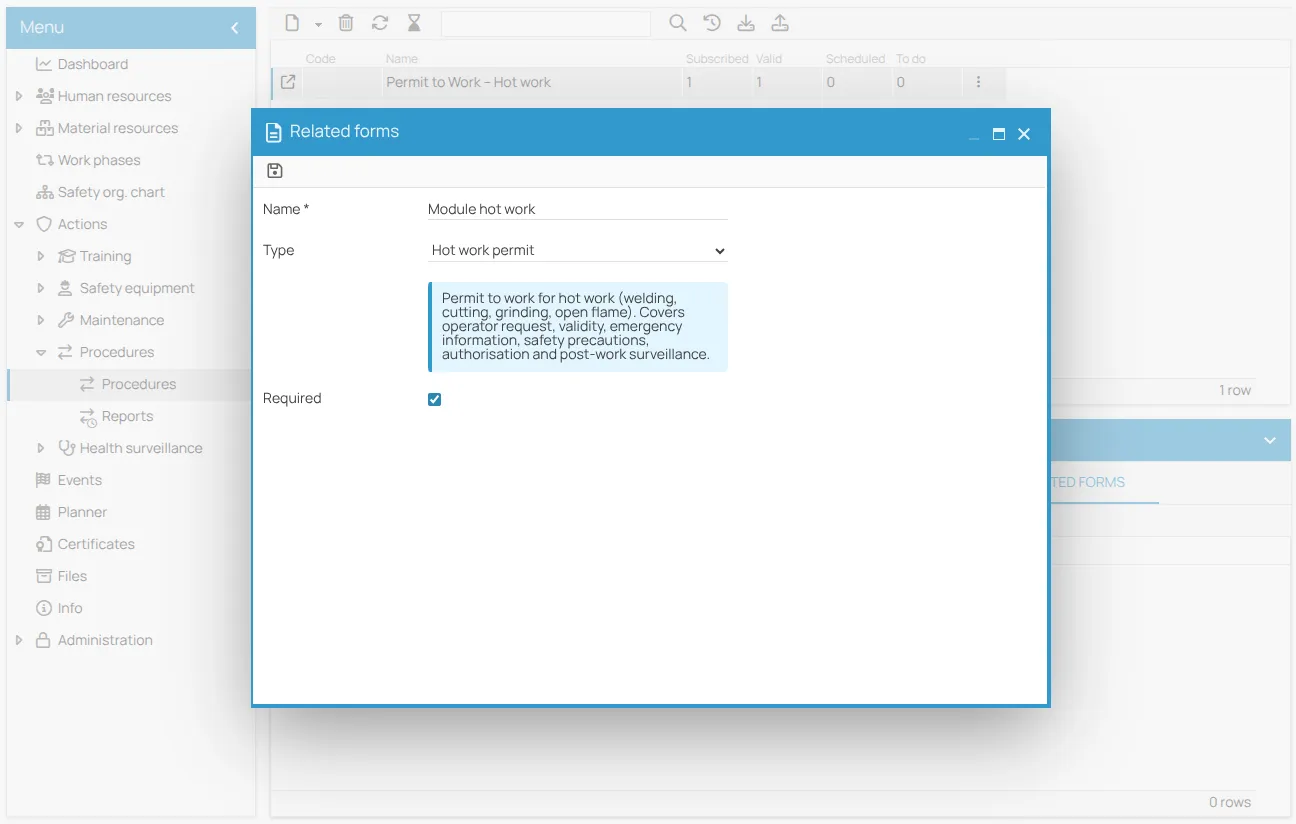
This flag is the heart of the mechanism: the permit cannot be issued until the form has been completed. Forms without it stay optional — see Configure a form on an action.
3. Associate the worker
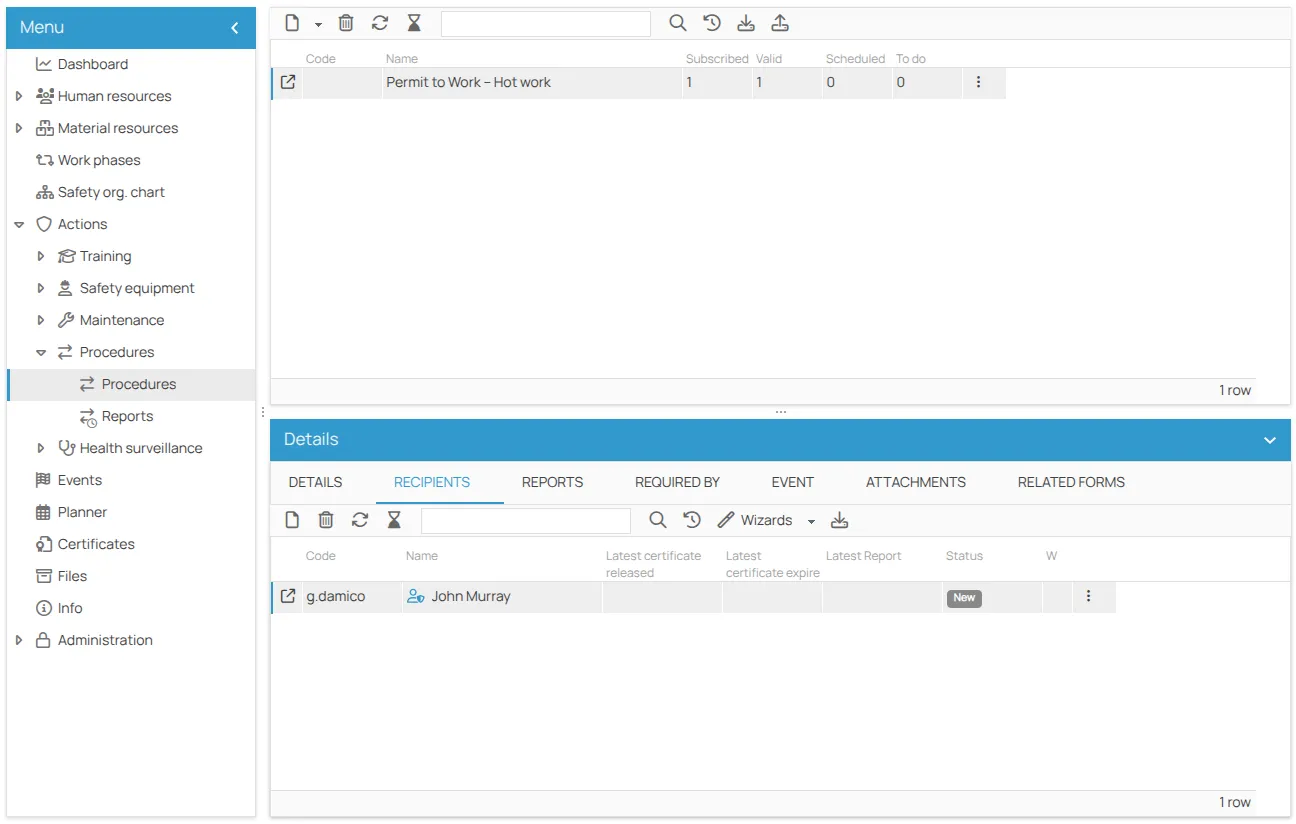
Section titled “3. Associate the worker”Associate the person to be authorised with the procedure: in our case the welder who will do the job. The permit is then issued to a named individual, exactly like a nominal authorisation.
4. Issue the certificate with the form
Section titled “4. Issue the certificate with the form”From the scheduler, find the deadline for the person associated with the procedure and start the certificate creation.
Because the procedure includes a required form, 4HSE opens the Forms linked to certificate window:
- the forms are listed, and the Required column shows which are mandatory;
- each has a Fill link;
- the Create certificate button stays disabled until the required form is completed.
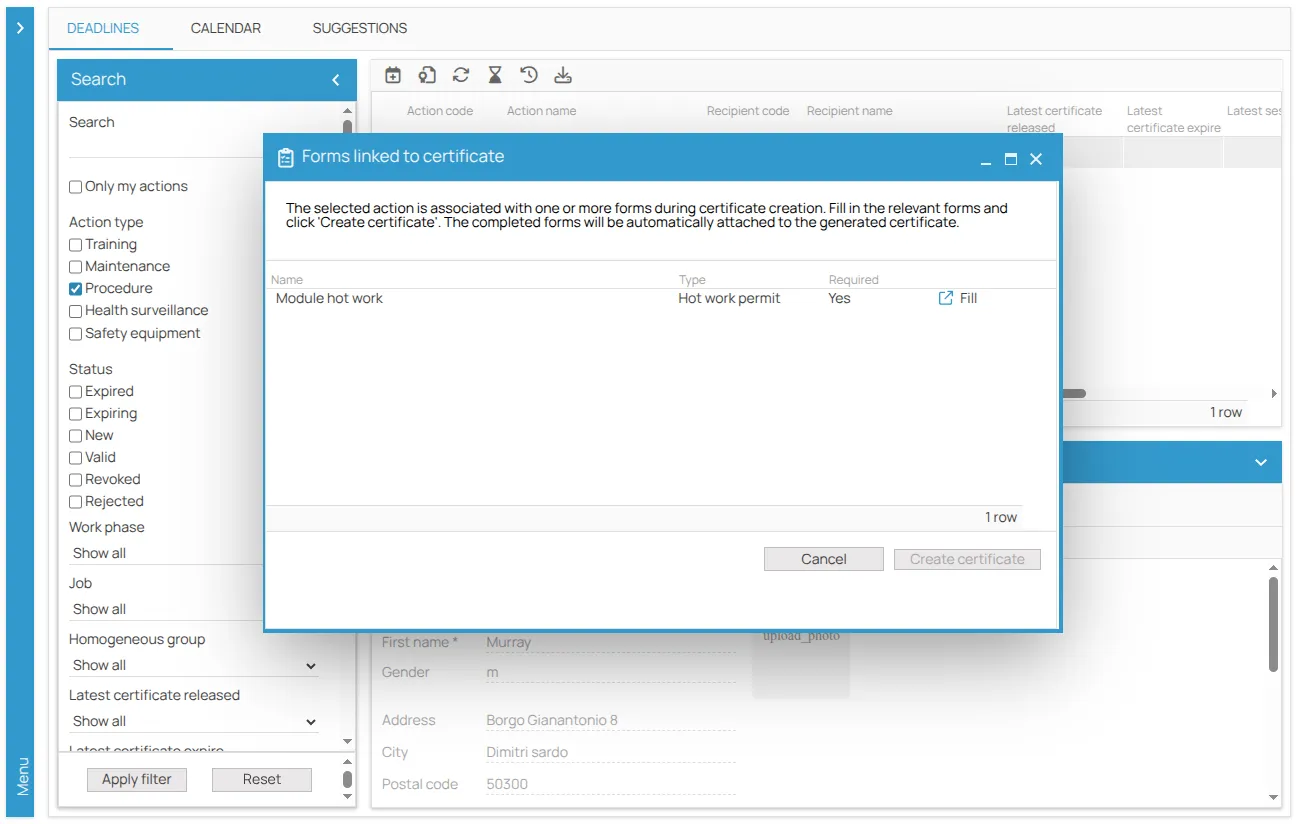
Click Fill to open the hot work form, complete its fields, apply the signatures where required, and save.
Now Create certificate is enabled. In the New certificate window, turn on Time precision and set the release and expiry with their Hour: release at 13:00, expiry at 15:00 — a two-hour permit.
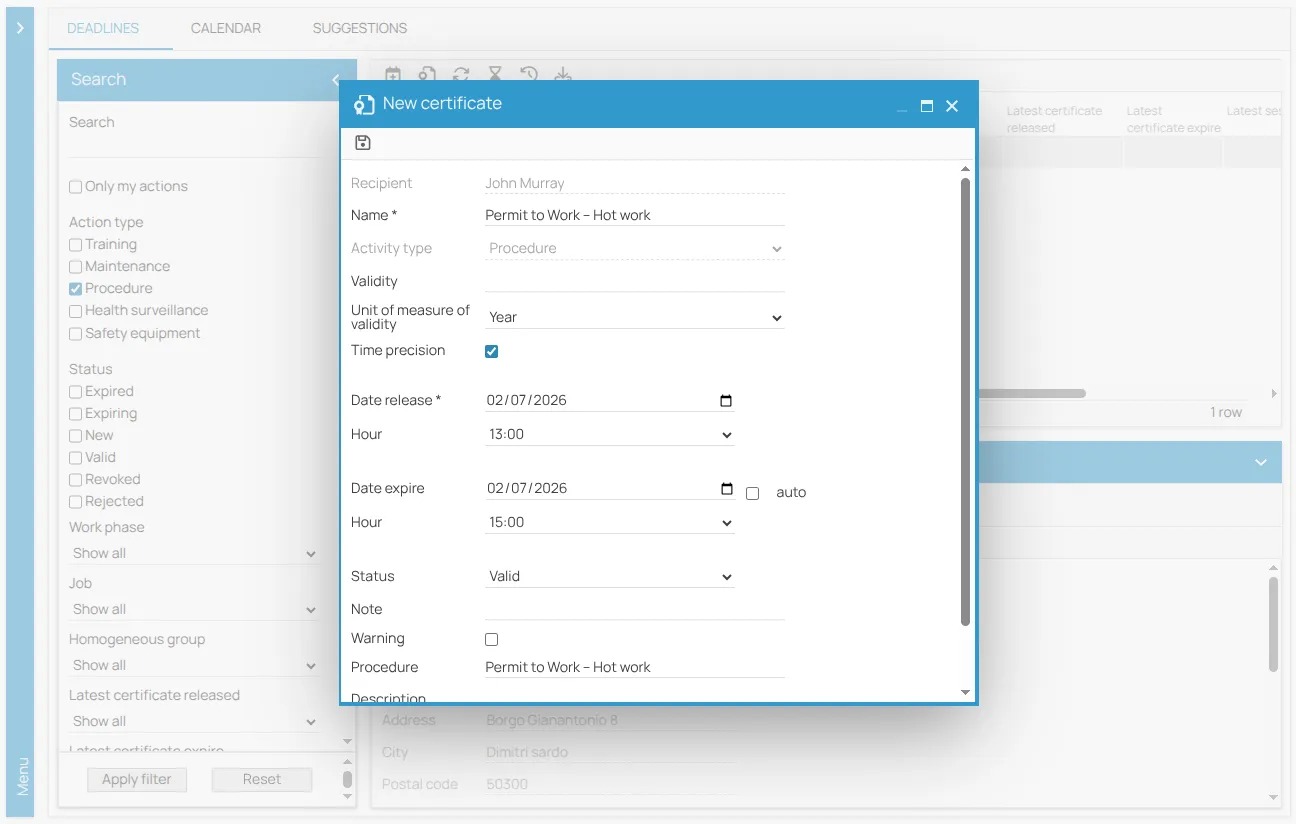
The permit is now valid — see Permit statuses — and the completed form is part of it.
5. Generate the QR code
Section titled “5. Generate the QR code”From the certificate detail, click Verification QR. 4HSE produces a signed, temporary link and its QR code — see Generate the verification QR code.
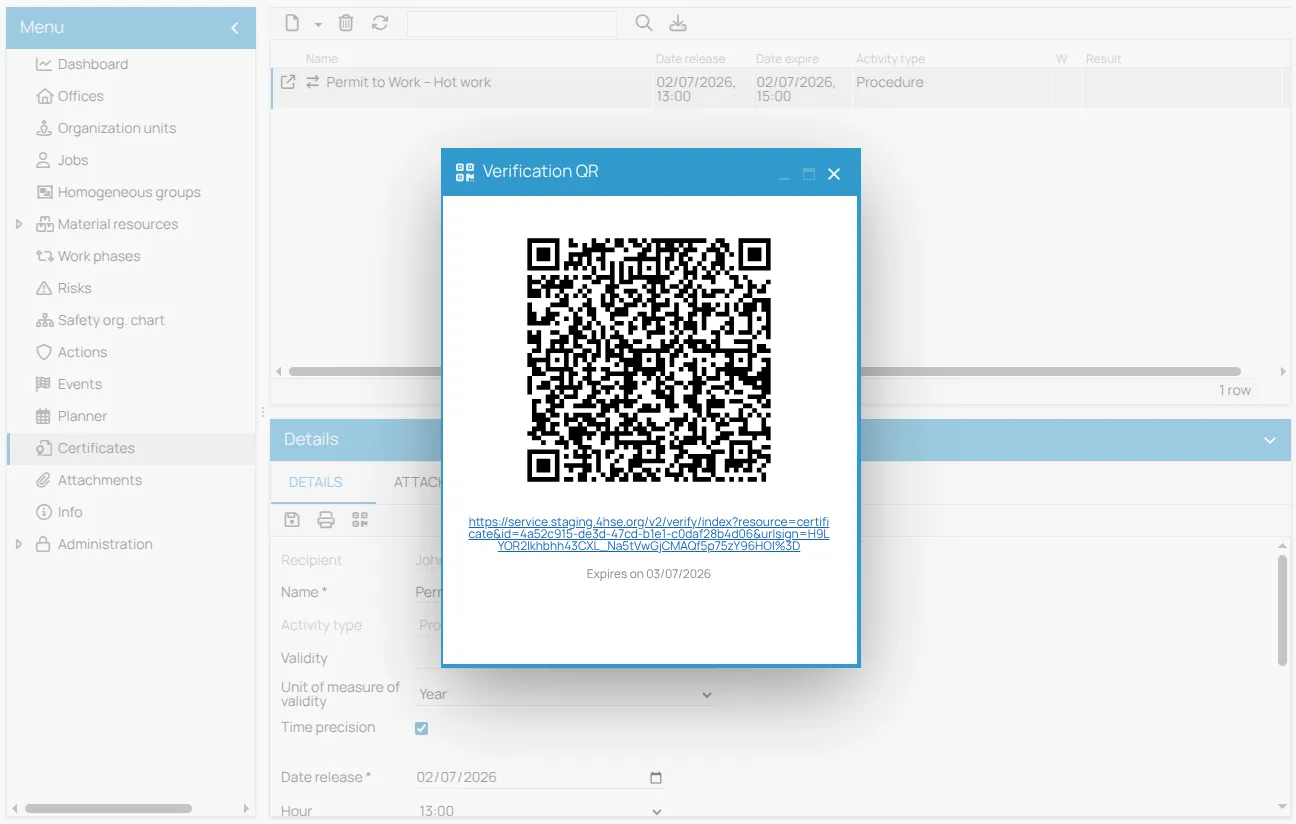
Show it on screen, print it, or attach it to the permit document.
6. Verify the permit on site
Section titled “6. Verify the permit on site”The supervisor scans the QR with their phone. The public page opens, without any 4HSE account, and shows the permit’s status recalculated in real time.
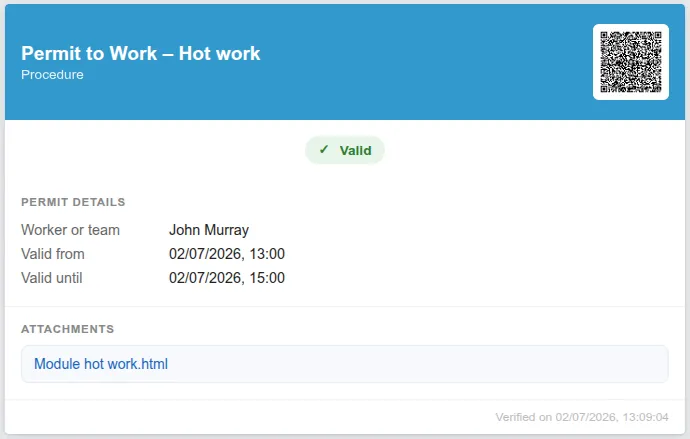
What you have achieved
Section titled “What you have achieved”A welding job authorised to a named worker, documented by a form that could not be skipped, valid for exactly two hours, and verifiable by anyone with a phone. After 15:00 the same QR will show Expired — with nothing to close by hand.
See Time-bound validity and Public verification.
This site is protected by reCAPTCHA and the Google Privacy Policy and Terms of Service apply.