

Register an event
The procedure is the same for every event category: an accident, a near miss and a non-compliance are recorded with the same fields.
Record the event
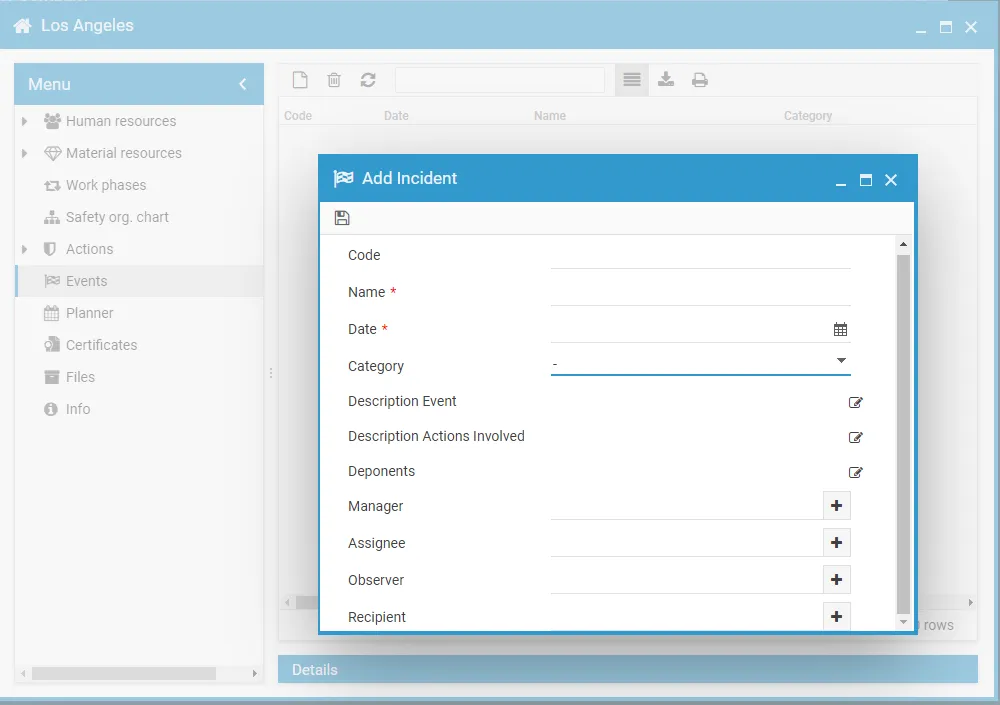
Section titled “Record the event”- Open the office and select Events from the left-hand menu.
- Click the New icon in the toolbar.
- Fill in the fields:
- Name and Date, which are required;
- Code, if the event has an internal number, and External reference code, if it has a reference with an external body;
- Category, for example Accidents or Non compliance;
- Status, which stays New for an event just recorded;
- Description Event, Description Actions Involved and Deponents;
- the Manager, Assignee, Watcher and Recipient roles.
- Click the Save icon (a floppy disk).
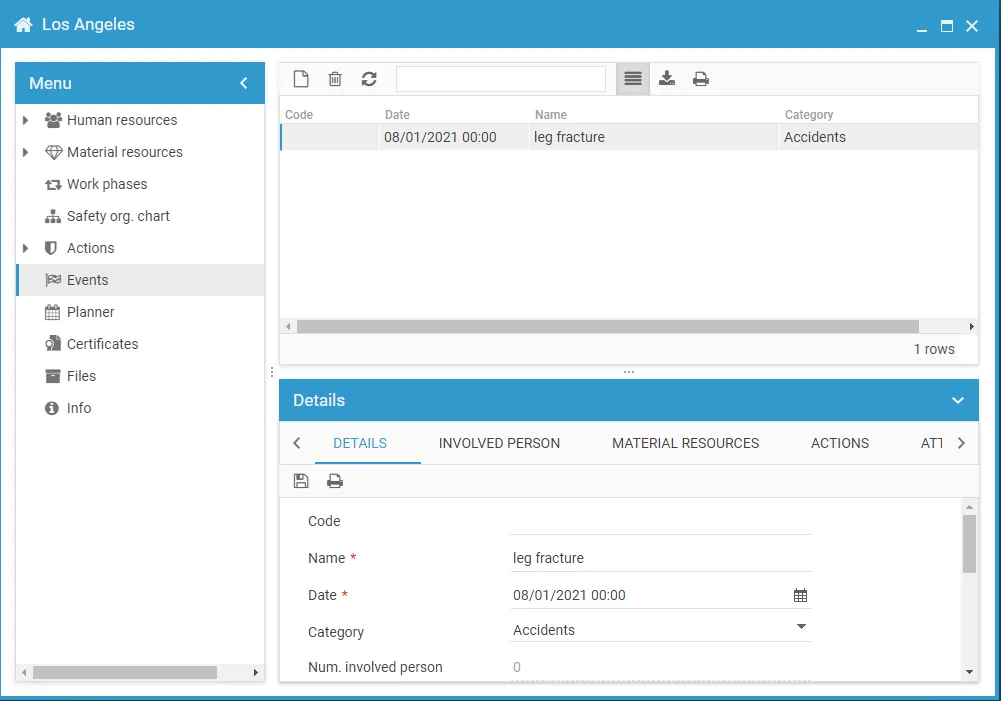
The event appears in the list with Code, Date, Name, Category and Status. Everyone with a role on the event receives a notification.
Complete the event from its tabs
Section titled “Complete the event from its tabs”People, resources, actions and attachments are added after saving. When the event is selected in the list, the lower part of the window shows its tabs; double-clicking opens the event in a window of its own, with the same tabs in the left-hand menu.
People involved
Section titled “People involved”- Open the People tab and click the New icon.
- In the Associate person window, select one or more people of the office.
- Open each person’s row to enter the Description of their involvement and the Days sickness.
Resources involved
Section titled “Resources involved”- Open the resources tab and click the New icon.
- In the Select resource window, choose workplaces, equipment, substances, PPE, jobs, homogeneous groups or work phases.
- If needed, open the row to describe the resource’s part in the event.
Corrective actions
Section titled “Corrective actions”Documents and photos
Section titled “Documents and photos”Upload the event’s files in the Attachments tab. There is no limit to the number of events or to the files attached: see Where attachments live.
When the event is concluded, see Close an event.
This site is protected by reCAPTCHA and the Google Privacy Policy and Terms of Service apply.