

Request an approval
This is the supplier’s side of the workflow. See Approvals for why the certificate is not valid immediately.
Access your supplier profile from the Suppliers list, via the desktop icon. There are three ways the request comes about.
From your schedule
Section titled “From your schedule”- Select the certificate directly from your schedule. The association with the action is automatic.
- Upload the certificate file: it is required to complete the request.
The system generates the approval request immediately.
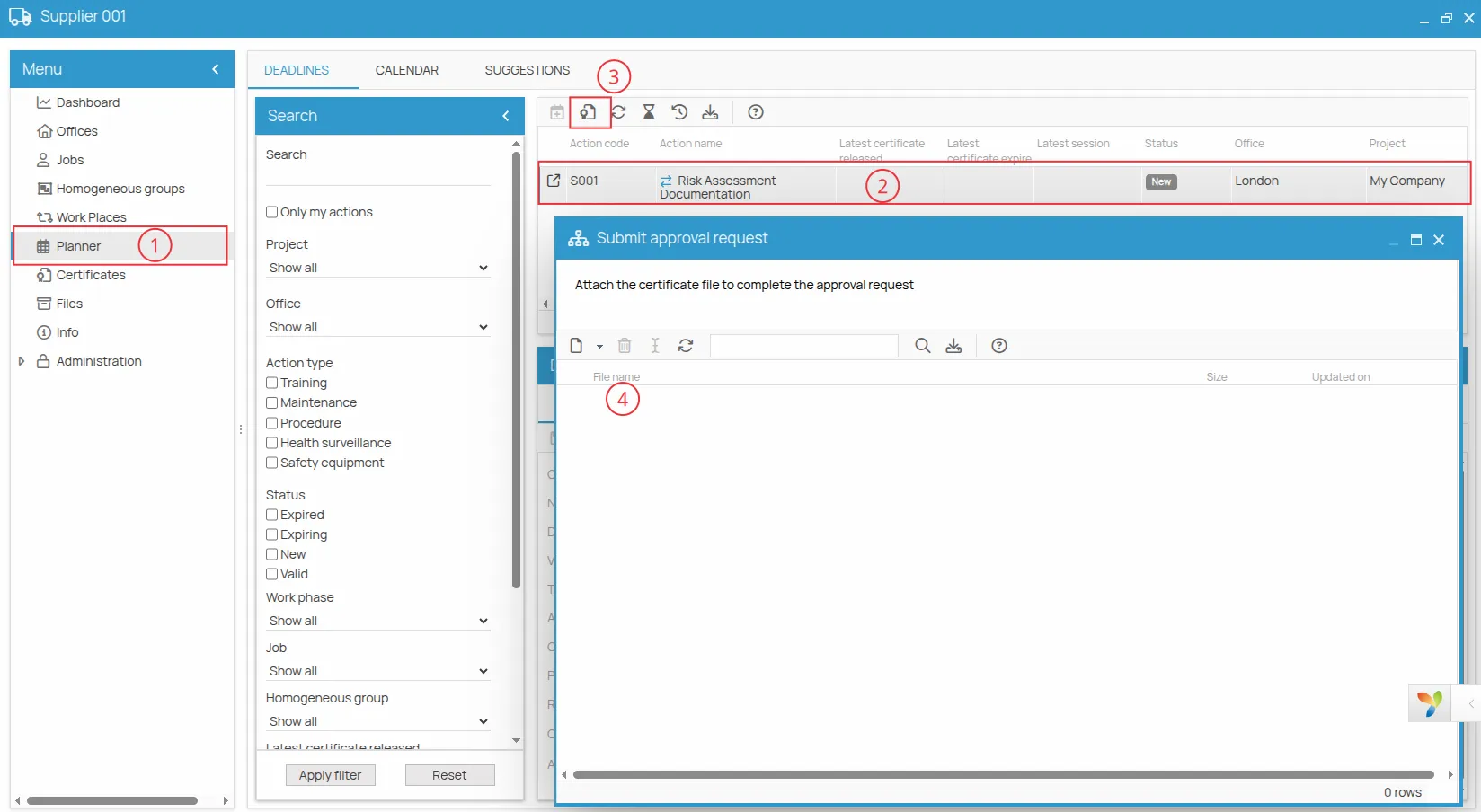
From the Certificates menu
Section titled “From the Certificates menu”- Create a new certificate from the Certificates menu.
- Select it and link the assigned action.
The request is created only at this point.
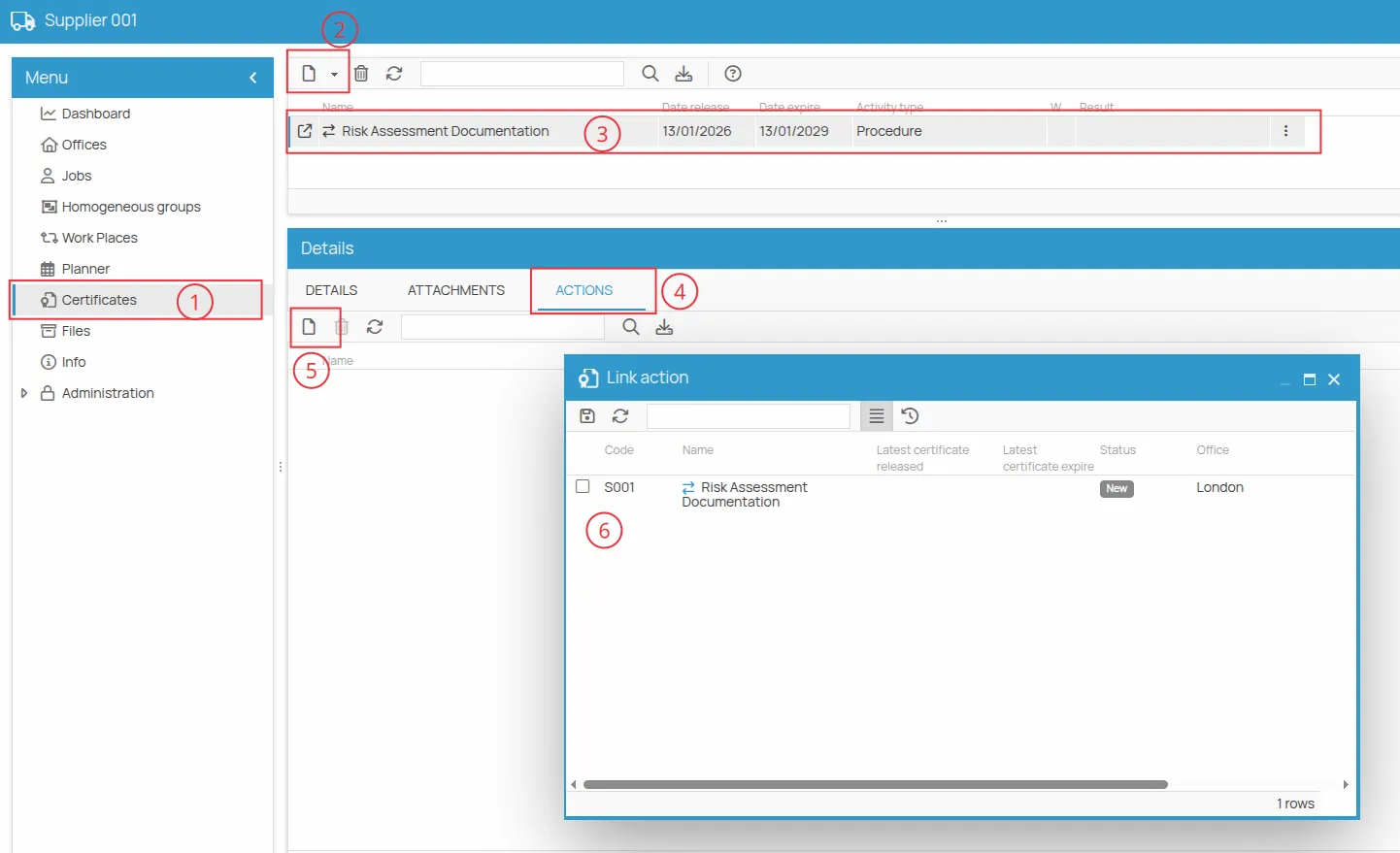
When the request did not go through
Section titled “When the request did not go through”If the certificate was created from the schedule but the submission was cancelled, or the file was not uploaded, the request is not completed.
- Go to the Certificates menu.
- Select the certificate that was created even though the request was not sent.
- Link it to the action and follow the guided procedure to complete the request.
Waiting for the outcome
Section titled “Waiting for the outcome”After saving the certificate the action is not valid until the project manager has reviewed it. You receive an automatic notification with the outcome.
This site is protected by reCAPTCHA and the Google Privacy Policy and Terms of Service apply.