

Transfer a worker between offices
When a worker moves from one site to another within the same project, their safety position has to be brought up to date in the new office as well. 4HSE provides a wizard for it.
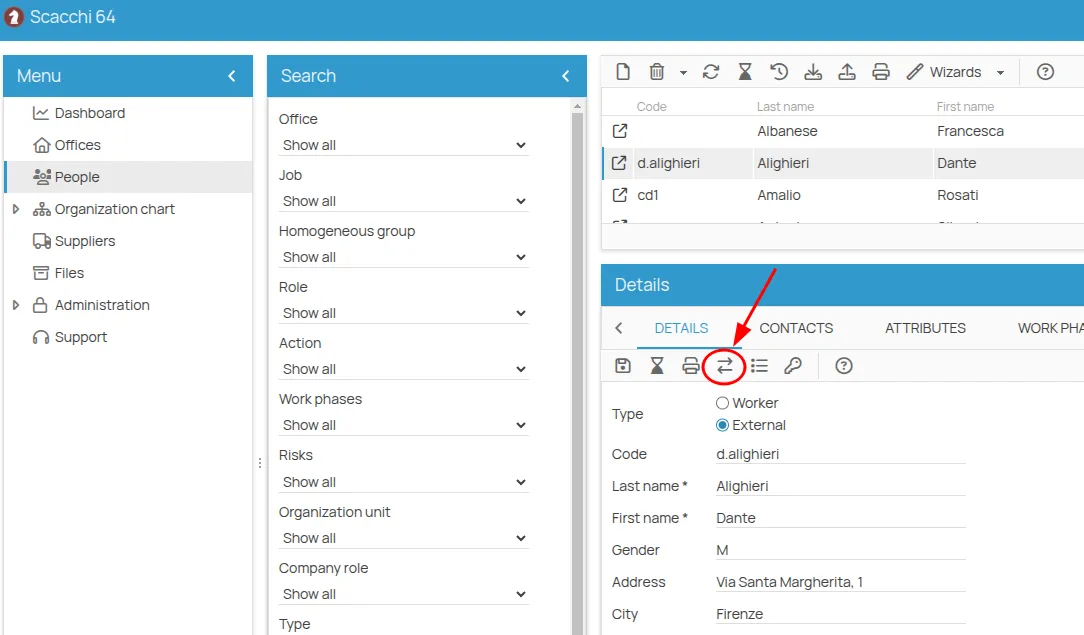
Start it from the worker detail toolbar: open the Wizards menu and select Move.
Step 1 — Source and destination
Section titled “Step 1 — Source and destination”- On the left, the offices the person is currently assigned to. Select one or more as the source.
- On the right, the available destination offices. Select exactly one, and make sure it is not among the sources.
- Click Next.
Step 2 — Transfer information
Section titled “Step 2 — Transfer information”- Enter the transfer date, which becomes the start date in the destination office.
- Decide about Record end dates in source offices:
| Option | Effect |
|---|---|
| Selected | the transfer date minus one day becomes the end date in the source offices, and the person is no longer assigned to them |
| Not selected | the transfer date is used only as the start date in the destination; the source assignments are left untouched |
- Click Next.
Step 3 — Confirm the links
Section titled “Step 3 — Confirm the links”A table lists the resources with Resource code, Resource name, Status and Action available.
The Action available column is interactive: where it says Link you can click it and change it to None if you do not want that link created. Where it already says None, it cannot be changed.
Review what already exists in the destination and what can be linked to the person, then click Confirm.
Step 4 — Run
Section titled “Step 4 — Run”The operations listed in step 3 are executed, with a progress bar. Wait until it reaches 100%, then click Finish.
For a worked example with real data, see Transfer a seasonal worker.
This site is protected by reCAPTCHA and the Google Privacy Policy and Terms of Service apply.