

Choose a report
The report is the model of the document to print: it sets which data appear and how they are laid out (see Printing and exporting).
When you click the Print icon on an item, printing goes through three steps: Report, Preview and Save as. The report is chosen in the first one.
Use a recent report
Section titled “Use a recent report”The drop-down menu of the Report step holds the last reports used for that type of item, up to five, and the most recent one is already selected. The menu stays empty until at least one print has been made from that type of item.
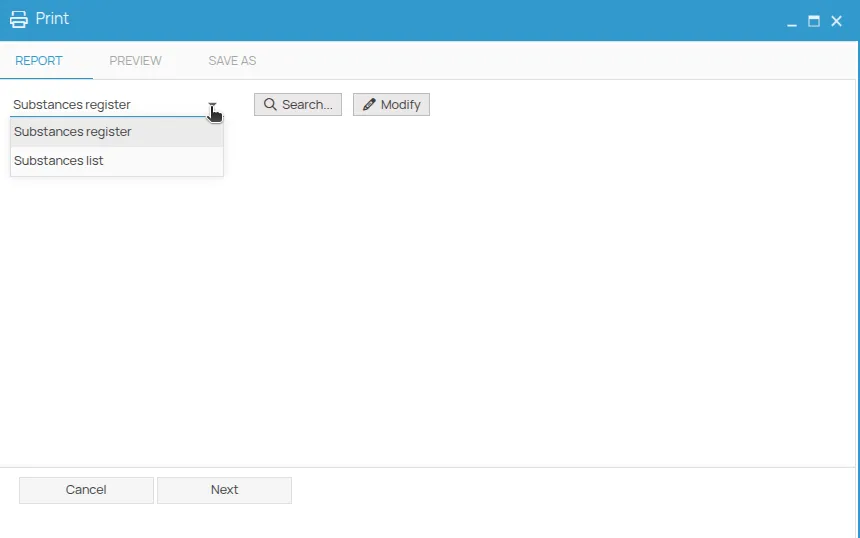
Search for a report
Section titled “Search for a report”-
Click Search…. The list of reports available for the item to print opens: they are the ones that have that type of item among their launch points.
-
Filter the list with the controls at the top:
- This project, Partner and 4HSE show the reports from one source at a time: those created or changed in the project, those the partner makes available to the projects in its multi-company panel (multi-company projects only) and those provided by 4HSE. If the project has no reports for that item, 4HSE is already active;
- Country and Language start from the country of the office or project and the interface language, and can be changed or cleared;
- Tag shows only the reports with the chosen tag;
- the text search looks in the report name and the file name.
Recently used reports appear at the top, marked with a star.
-
Double-click the report.
Before using it, the report can be changed with the Modify button: see Customise a report.
This site is protected by reCAPTCHA and the Google Privacy Policy and Terms of Service apply.